.svg)


Hable con los datos de su trabajo mediante conectores MCP
Conecte Insightful a Claude, ChatGPT o cualquier cliente compatible con MCP. Obtenga respuestas asistidas por IA a partir de sus propios datos de trabajo en tiempo real, con los permisos que ya tiene establecidos. Su cliente de IA obtiene acceso seguro de solo lectura. Usted obtiene informes de fuerza laboral de autoservicio en lenguaje natural. Disponible ahora en todos los planes.


.avif)










Los datos de su trabajo viven en paneles. Sus equipos trabajan con IA.
Deje de perder el tiempo tratando de descifrar números que no explican qué es lo que impulsa el incumplimiento de los SLA o las horas en disputa. Workforce Analytics desglosa rápidamente la distribución del trabajo, la capacidad y los riesgos para que pueda mantenerse a la vanguardia de:


Respalde las conversaciones sobre el tiempo y la entrega con un contexto operativo claro.


Detecte las primeras señales de una desviación en la ejecución antes de que se incumplan los compromisos.


Mantenga la estructura y la responsabilidad cuando aumenten las revisiones o el escrutinio.


Vea dónde se gasta el esfuerzo sin un rendimiento proporcional.

Extrae inteligencia de trabajo precisa de cada proceso
Combine Insightful con otras fuentes conectadas al mismo cliente de IA. Para un conector de Claude o ChatGPT, simplemente copie su endpoint, péguelo en la configuración de conectores de la herramienta correspondiente y autorice. Para la mayoría de los otros clientes MCP, solo tiene que añadir el endpoint al archivo de configuración de su herramienta MCP y aprobar el acceso. Ya está todo listo para hacer cualquier pregunta sobre los datos de su trabajo.

Actividad
Datos de trabajo y comportamiento en tiempo real

Patrones
Tendencias agregadas a lo largo del tiempo

Perspectiva
Información procesable con contexto

Combinar
Decisiones seguras e informadas

Todo lo que su asistente de IA puede consultar
Seis dominios de datos, cada uno limitado a lo que el usuario conectado ya puede ver en Insightful. Usted decide si permite que su propia herramienta de IA lea su espacio de trabajo para responder a sus preguntas. Está diseñado priorizando la privacidad: ningún dato se envía a la IA de Insightful e Insightful no puede ver las consultas que usted realiza.

Personal
Realice un seguimiento de los cambios en la productividad a nivel de equipo a lo largo del tiempo. Detecta los primeros signos de ineficiencia o agotamiento antes de que afecten a los resultados.

Tiempo y asistencia
Comprenda qué herramientas permiten un trabajo productivo y cuáles introducen fricciones. Tome decisiones informadas sobre los flujos de trabajo y el uso de la tecnología.

Productividad y utilización
Defina qué significa el trabajo productivo para su organización. Cree una base de referencia coherente que refleje el trabajo real, no las suposiciones.
.svg)
Uso de aplicaciones y sitios web
Vea cómo se desarrolla el trabajo a medida que ocurre. have full access and can’t be limited. Managers see assigned employee, teams, tasks, projects, and granted features. Clients see their project, for external sharing. Employees, the measured person, can see their own data if the Admin enables it.

Virtual and remote desktop
Capture el tiempo de trabajo preciso con registros listos para la auditoría. Respalde las revisiones operativas, el cumplimiento y las necesidades de presentación de informes.

On-premise, cloud, or private cloud
Acceda al contexto visual cuando necesite una revisión más profunda. Apoye la auditoría, la capacitación y la investigación de problemas.
Preguntas en tiempo real, datos en tiempo real
Consulta los datos de la fuerza laboral con el asistente de IA que ya utilizas, sin necesidad de paneles ni informes manuales. Los administradores que se conecten pueden preguntar sobre toda la organización: cada equipo, grupo y empleado. Los gerentes solo pueden preguntar sobre los empleados, equipos y grupos que ya gestionan.

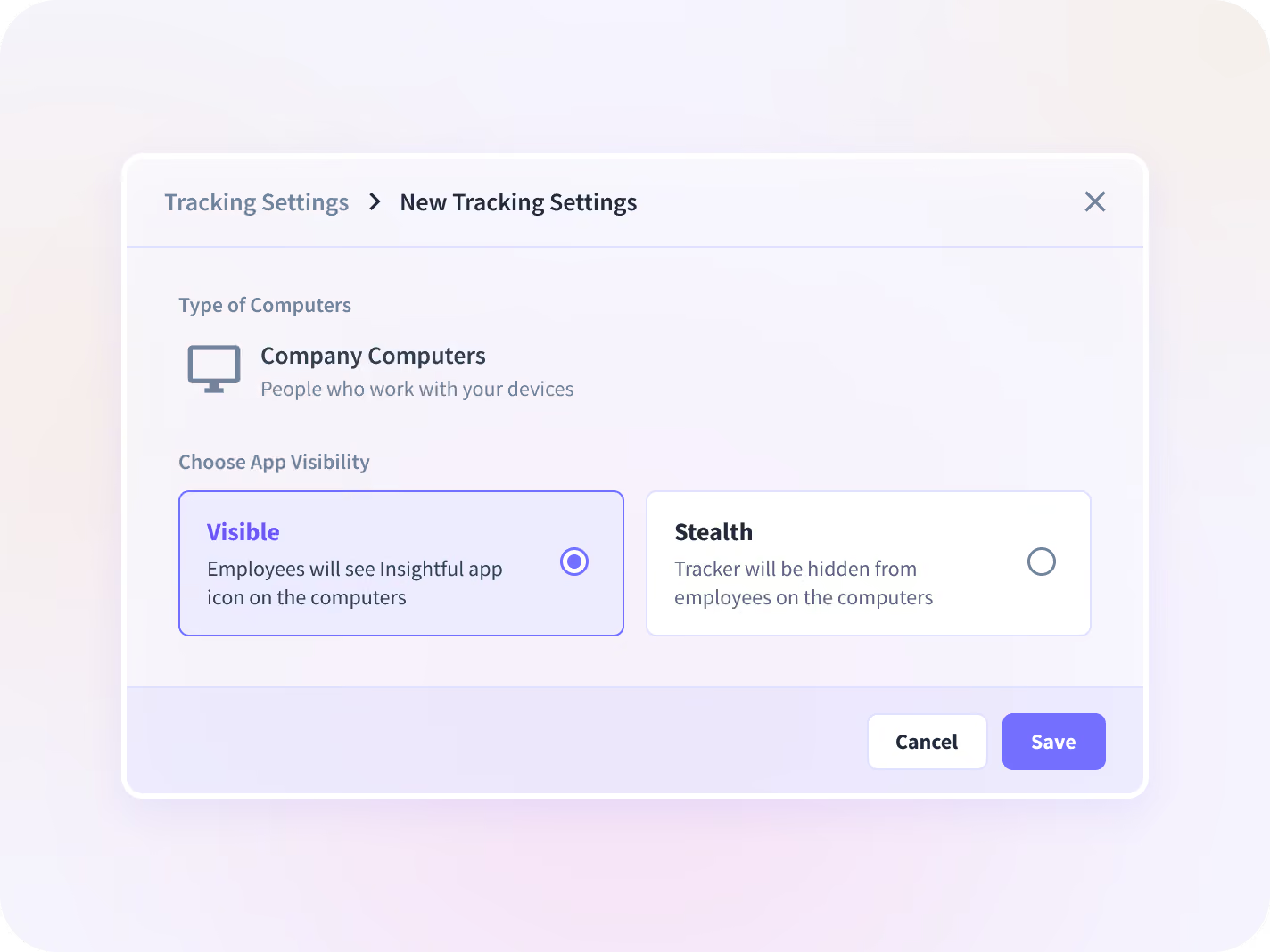
- Company setup with Stealth mode, for a defensible record of work
- Security alerts on a named app, site, or keyword, capturing a screenshot on trigger even where screenshots are otherwise off
- Activity Logs for investigation, retained up to three months

- Personal setup, so collection runs only between clock-in and clock-out
- No admin privileges required on the machine
- Identity comes from the email address, so nothing depends on the hardware

- Company setup with automatic clock-in, which removes timezone problems
- Silent install pushed through your existing endpoint management at any fleet size
- Shared machines register each local login as a separate person

- Company setup with Visible mode and the employee widget
- Employees see the same real-time data their managers see, once an Admin enables it
- Manual time entry, so hours spent off the keyboard still land on the timesheet

Full-Security Breadth
Insightful data is AICPA SOC 2, ISO 27001, GDPR, CSA, CCPA, and HIPAA compliant to protect against damaging data breaches. Data is fully encrypted at rest with AES-256 and in transit via HTTPS, SSL, TLS 1.3 to deliver the most secure computer monitoring software.

Remote & Mass Deployment
Insightful installs in bulk through Active Directory, an RMM tool, or an MDM, with silent installation on both Windows and macOS. SSO and directory integration keep identity where it already lives, and HRIS integrations keep the employee list current as people join and leave.

Device Support
Windows (10 or later, requires .NET Framework 4.8+) and macOS 11 or later. Linux is supported in Beta, and requires Gnome/Cinnamon on Xorg. On macOS, Support prepares a configuration profile for your environment and applies it before install, which removes the per-user permission prompts. Not compatible with Chromebooks, iPads, or mobile devices.
Se integra con todas sus herramientas para maximizar la productividad
Con más de 50 integraciones disponibles en la plataforma Insightful, conectarse con las principales herramientas de su equipo está a solo un clic de distancia.


Impacto comprobado en organizaciones reales






Convierta el uso de la IA de su equipo en una ventaja competitiva
Preguntas frecuentes
Two setup types and two visibility modes. Company registers people automatically and supports automatic time capture. Personal uses an email invitation and runs only while the person is clocked in. On Company installs, Visible shows a widget and Stealth runs without one.
Stealth describes how the agent behaves once it is on the machine, and how visible it is to the employee. Silent install describes how it gets there. The two are configured separately, and you can combine them however your policy requires.
It can. The agent runs as Workpuls, and security software sometimes flags it, which usually shows up as a machine reporting no data at all. Ask Support for the current allow-list and antivirus exclusion before a wide rollout. Deploying to a test group first will surface it early.
No. Both are ways of installing, and each one works on company hardware or on an employee's own machine. Pick by how much visibility you need, and keep the hardware question separate.
Windows 10 and later, which needs .NET Framework 4.8 or higher, and macOS. Linux is in Beta and requires Gnome or Cinnamon under Xorg, so Wayland is out. Chromebooks, iPads, and phones fall outside what the agent covers.
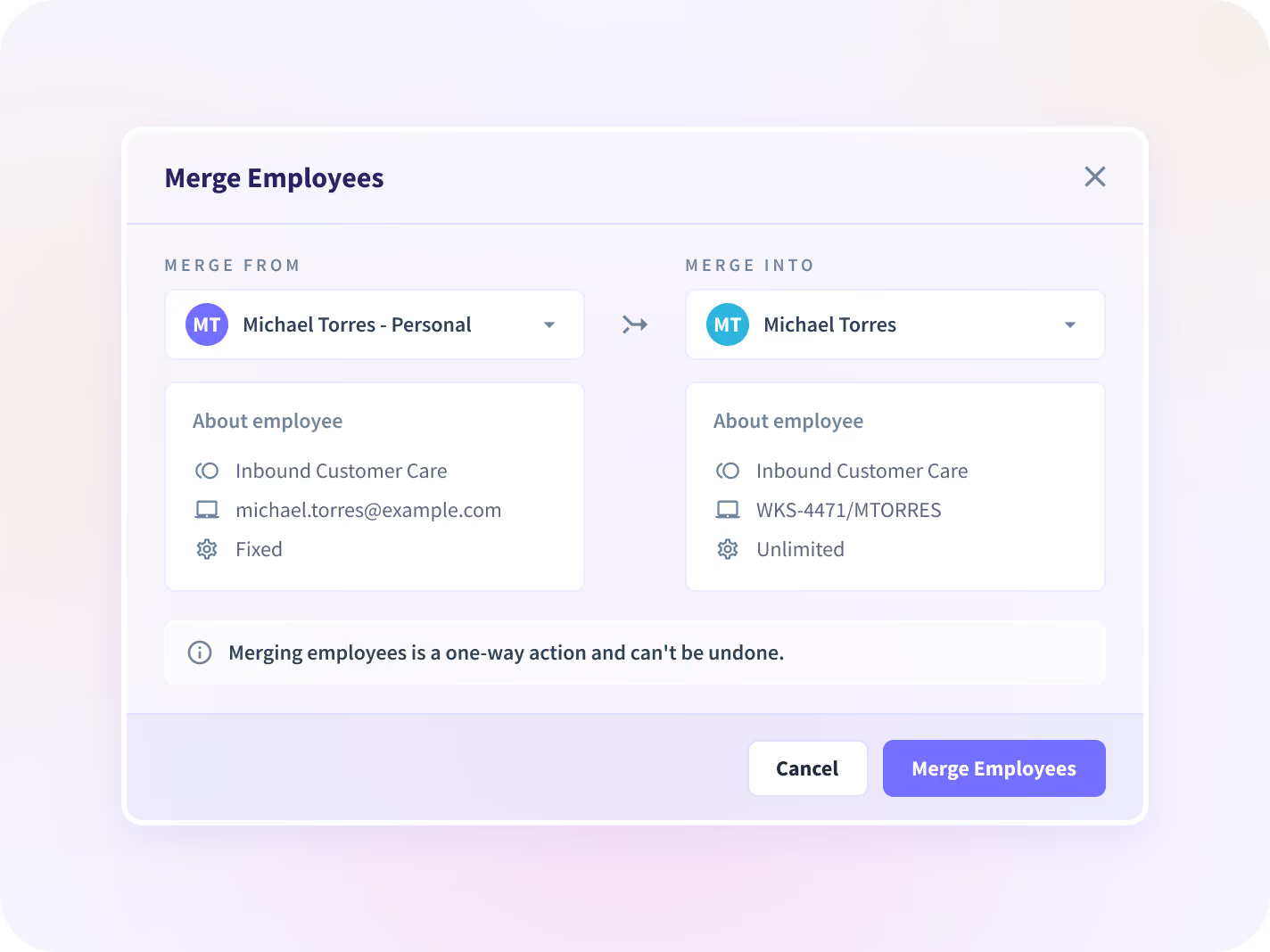
On the Company setup each local login on a shared machine registers as its own person, so a hot-desked workstation resolves correctly. Someone using two computers creates two profiles, which are then merged from the Merge tab into one billed record. In Active Directory environments this happens on its own: one person across several domain-joined machines lands in a single account, with no merge and no double billing.
Deactivating a person stops collection and billing from that point. There is a seven-day lock before they can be reactivated, though same-day reactivation works until midnight. Deleting a profile and its data outright goes through Support and cannot be undone.
Yes. Alongside the standard Full and Light builds, there are serviceless Citrix and Per-User variants for virtual and remote desktop setups. Support handles the environment-specific configuration with you.
Accessibility permission always, and screen recording permission where screenshots are on. Support prepares and applies a configuration profile before install, which covers the first. Apple requires the second to be granted manually, so if screenshots come back black on a Mac, that permission is almost always the reason. macOS permissions and settings
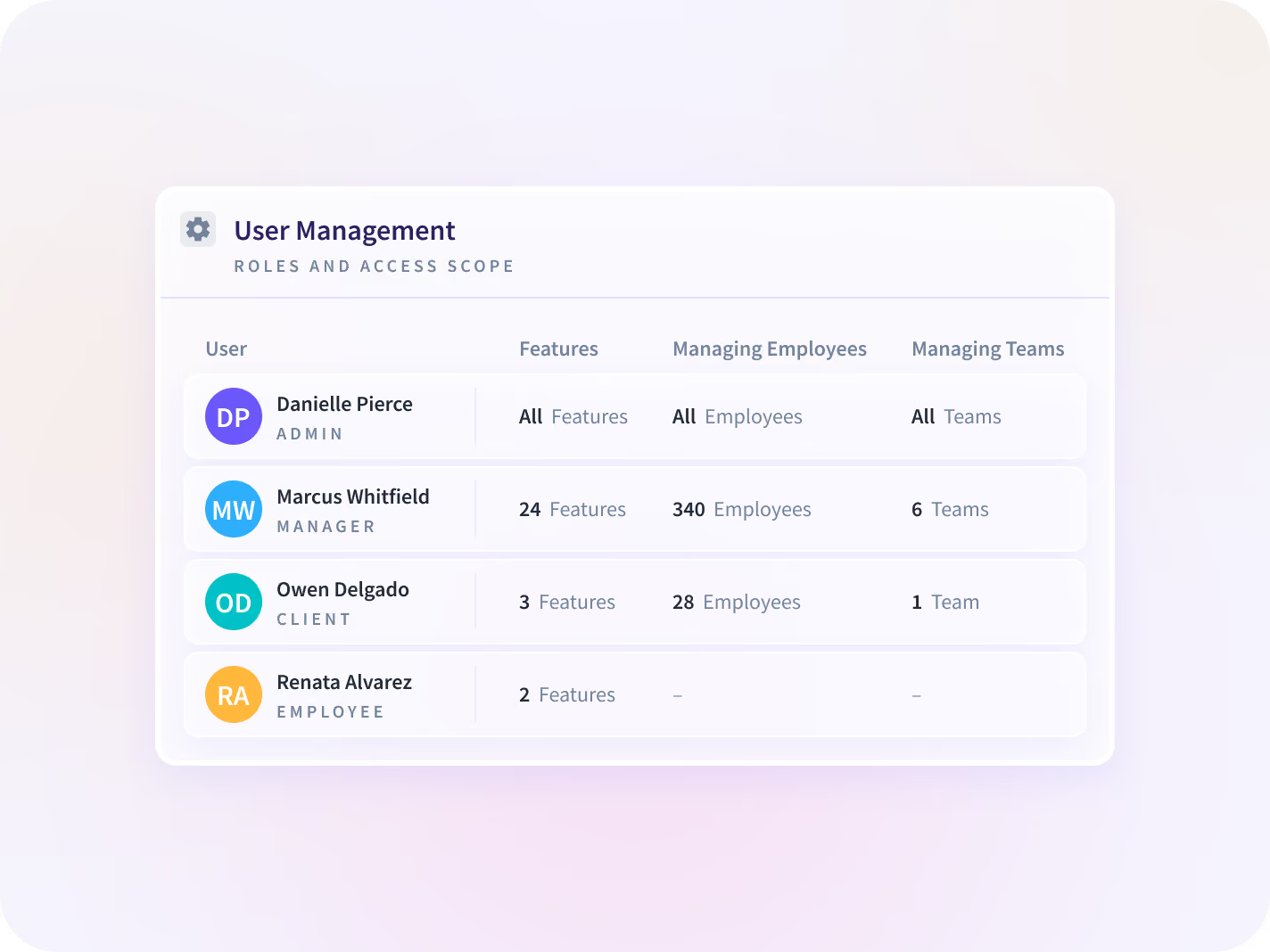
There are four roles. Admins see everything. Managers see only the people, teams, or projects in their scope and only the features an Admin grants. Clients see a single project. Employees see their own data where an Admin allows it. Admin and Manager accounts are dashboard-only, so they are neither collected from nor billed unless they also hold an Employee account.
It logs no keys typed, captures no bulk messages, records no audio, and takes no webcam access. It observes and will not block or control the computer. Insightful also has no reach into the business data held on the machines it runs on.
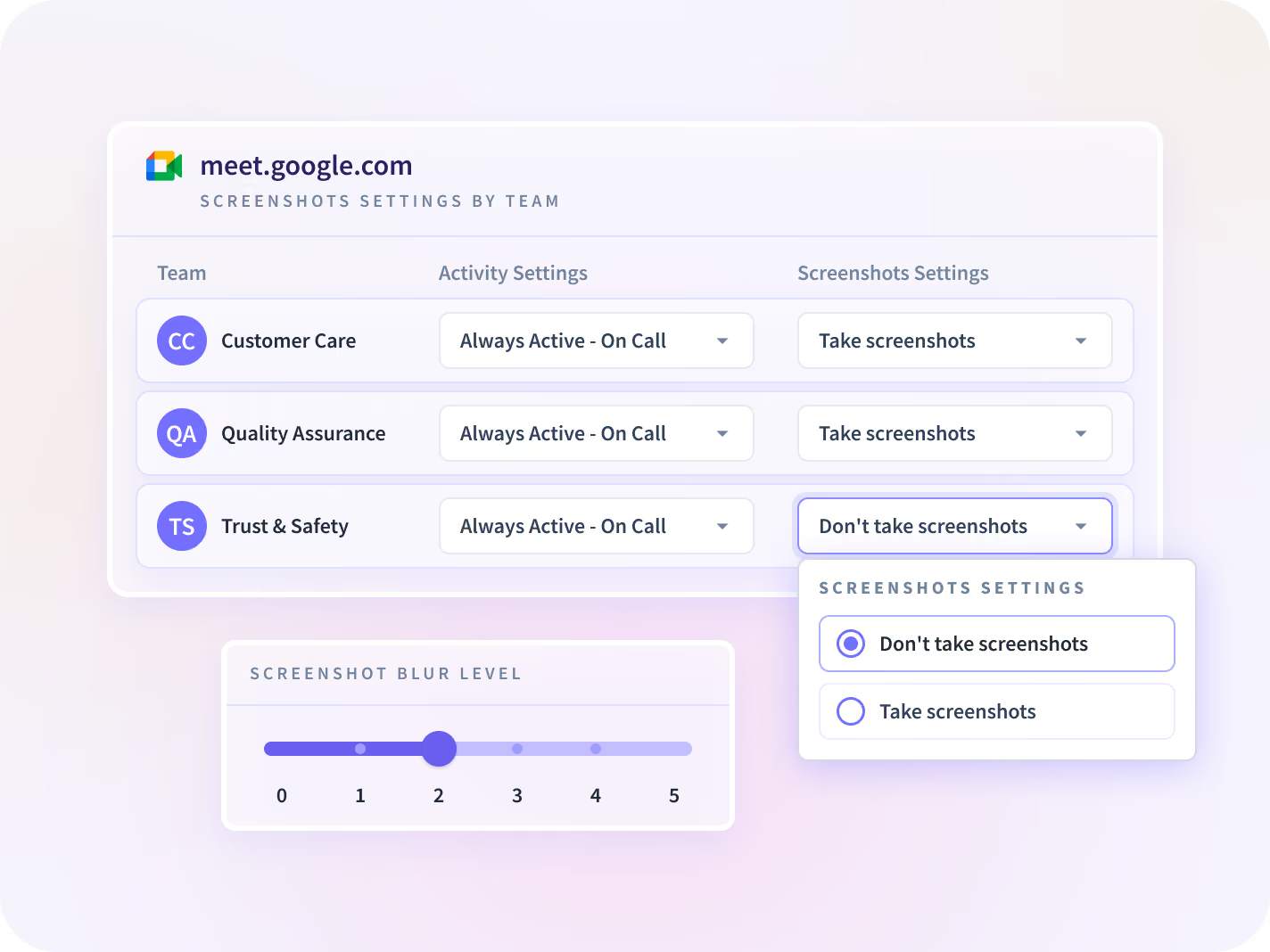
Capture can be switched off entirely for a named application, a whole team, or a single individual, and specific apps can be excluded at team level. Screenshots can also be blurred where the work itself is sensitive. Productivity labels follow the same pattern, set once for the organization and overridden per team where a role needs different definitions.
Yes, on-premise or in a private cloud, for organizations whose security or regulatory position rules out cloud storage. These deployments receive new versions as update packages applied on your own schedule, so they typically sit behind the cloud release, and a few cloud-delivered capabilities are unavailable. Support and Engineering are part of these projects from the start.
Screenshots and screen recordings up to two months, activity logs up to three months, everything else up to two years. The agent buffers briefly on the machine and syncs upward, so the history sits on the platform and not on the employee's computer.
Insightful is AICPA SOC 2, GDPR, CSA, CCPA, and HIPAA compliant, with data encrypted at rest and in transit.


