.svg)
Uso de aplicaciones y sitios web: haga que el gasto en SaaS sea defendible
Descubre en qué herramientas confían los equipos para mantener las entregas en marcha. Tome decisiones sobre la renovación, la consolidación y el dimensionamiento correcto basándose en datos de uso reales.




El gasto en software supera a la responsabilidad
Las finanzas cuestionan el gasto en SaaS. Las licencias y los registros de proveedores muestran la actividad, pero no el impacto. Si no hay pruebas claras de qué herramientas son fundamentales y cuáles son las que se utilizan como software de almacenamiento, las renovaciones subjetivas corren el riesgo de provocar interrupciones y desperdiciar recursos.

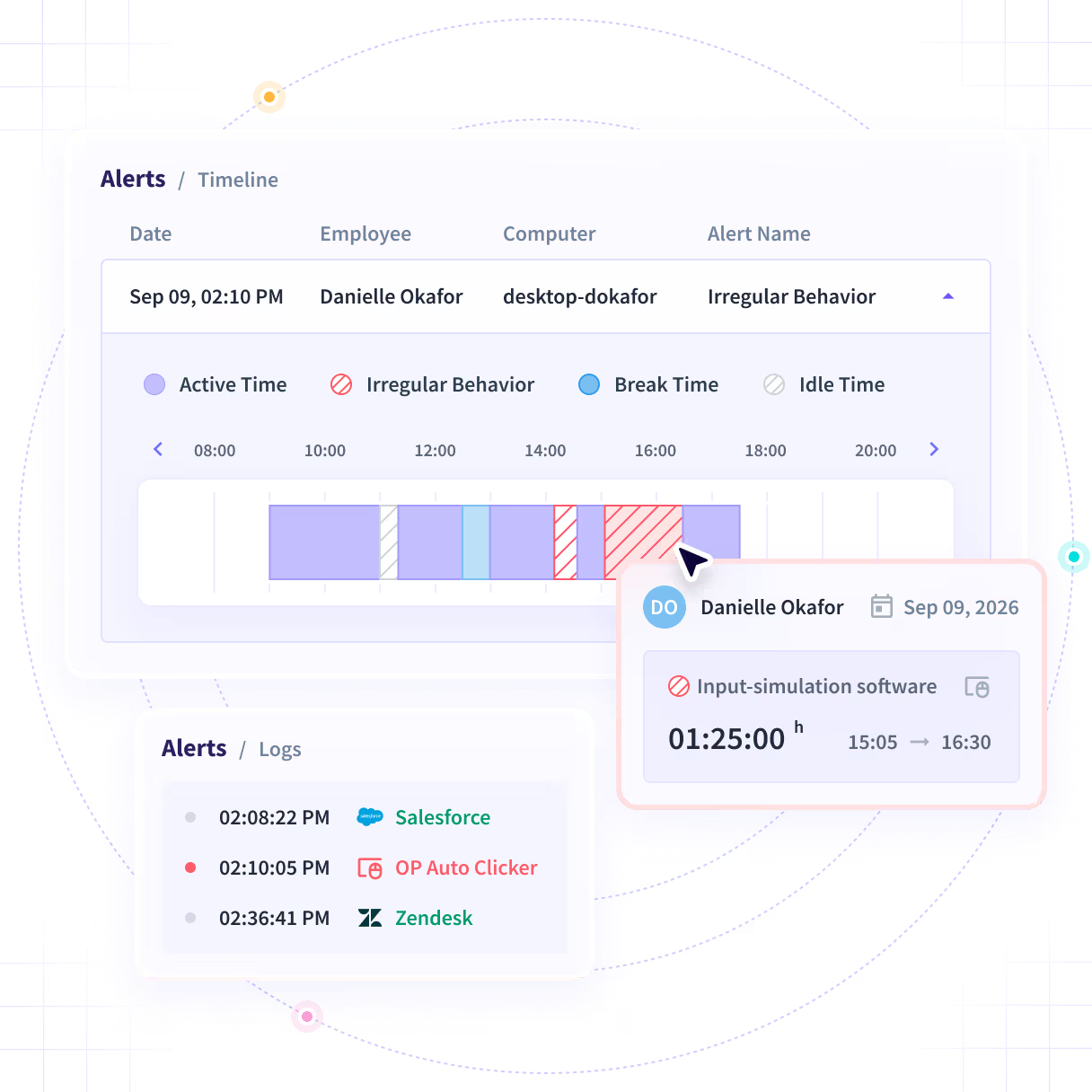
Sepa cuándo la actividad de un turno no cuadra
La Alerta de Comportamiento Irregular marca automáticamente los turnos que no parecen trabajo genuino, para que no tenga que confiar ciegamente en las cifras ni revisar los registros manualmente. El resultado: datos laborales en los que realmente puede confiar.

Detección automática, en cada turno.
Verificado mediante una lista actualizada de software de simulación de actividad y señales de comportamiento, para que nadie tenga que revisar los registros manualmente.

Contexto completo, no solo una alerta.
Vea la ventana exacta en cuestión en la vista de Registros: la línea de tiempo de actividad, los registros de actividad y las capturas de pantalla (si están habilitadas) antes de sacar conclusiones.

Alertas adaptadas a lo que le importa.
Los administradores y gerentes configuran alertas para los equipos y empleados bajo su supervisión, recibiéndolas en la aplicación, por correo electrónico o ambos.

Resumen diario o informe programado.
Un resumen al día por defecto, o elija un informe por correo electrónico diario, semanal o mensual, con los casos recurrentes separados de los nuevos.

Incluido en todos los planes.
Disponible en Workforce Analytics, el plan Combo y Enterprise, además de su prueba gratuita. No se requiere ningún complemento adicional.

Casos de uso
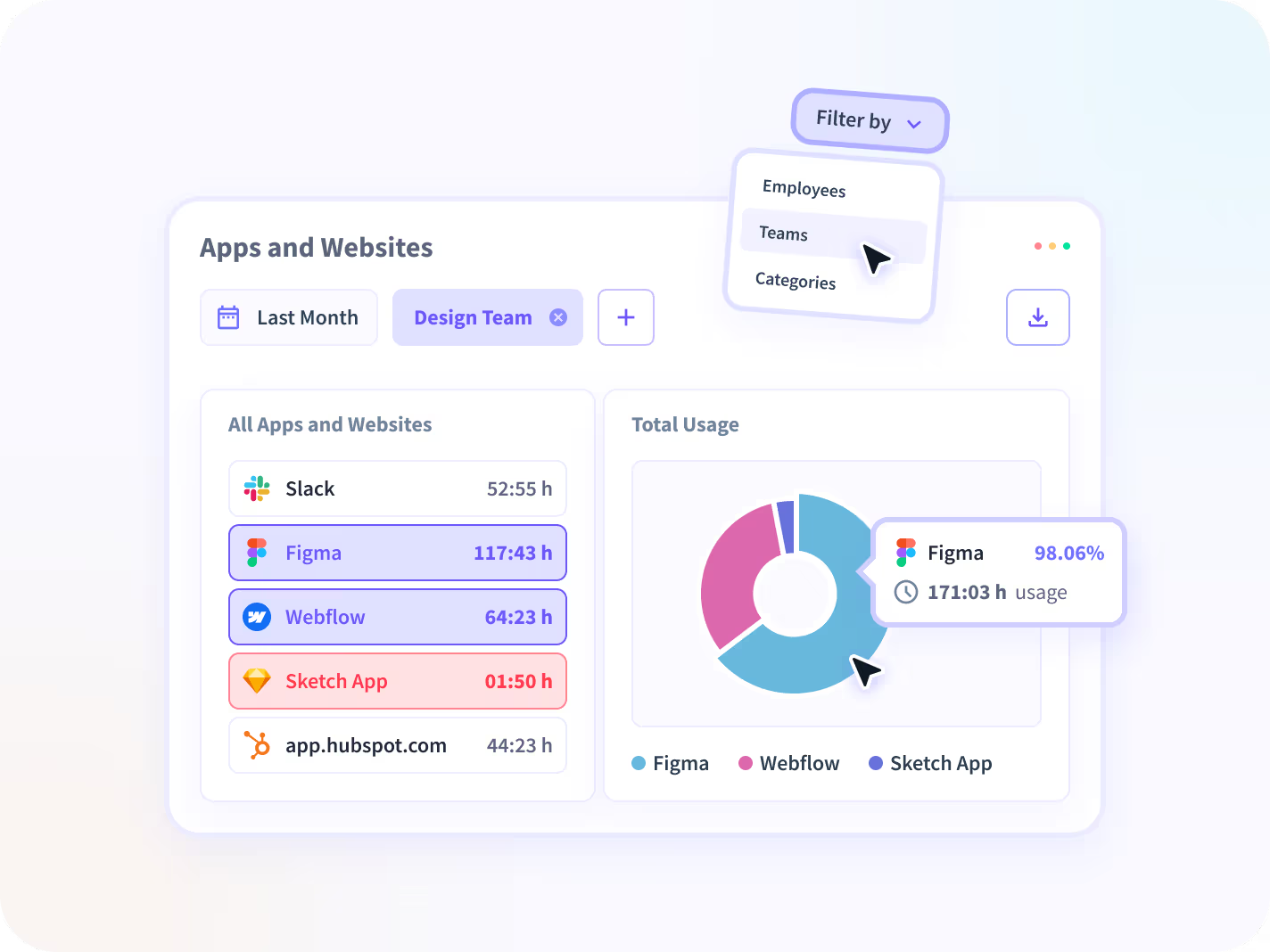
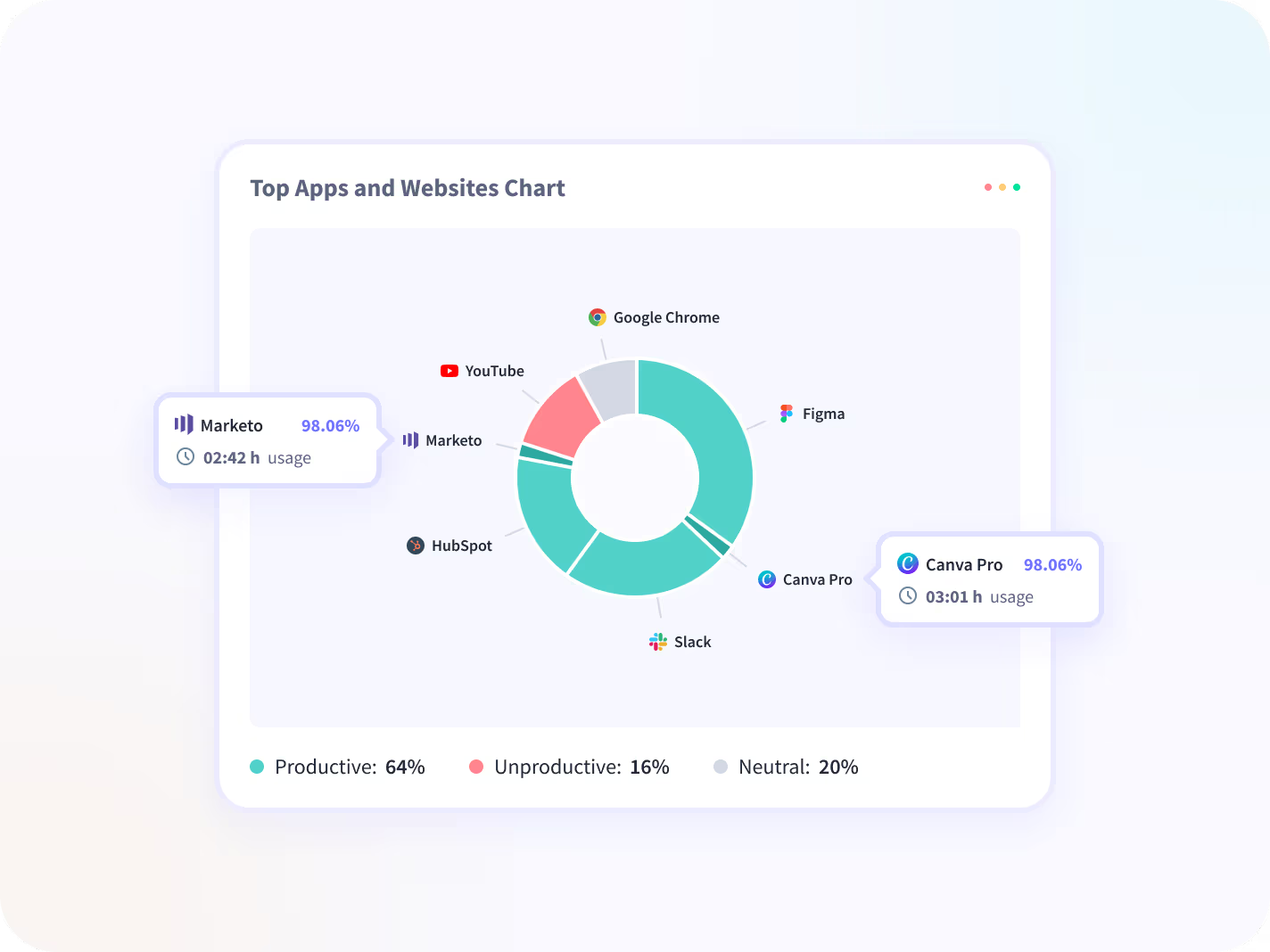
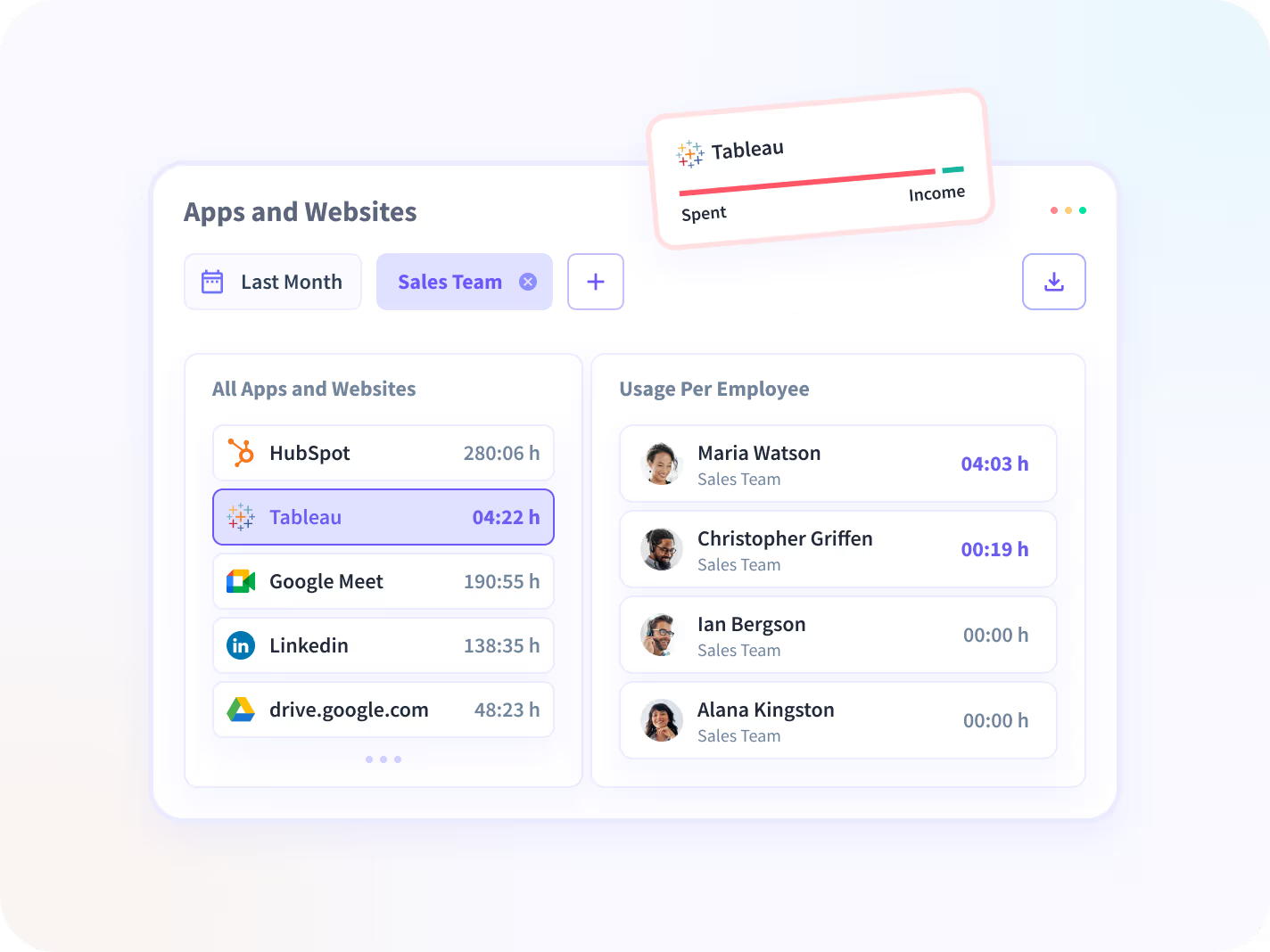


Las pilas crecen más rápido de lo que pueden gobernarse, especialmente a medida que aumenta la plantilla. No pagues por la redundancia. Los datos sobre el uso de aplicaciones y sitios web revelan licencias superpuestas e infrautilizadas, por lo que puede consolidarlas antes de que las renovaciones se conviertan en un desperdicio.


La adopción no refleja el trabajo real. El uso de herramientas aumenta, pero la producción no. El uso de aplicaciones y sitios web revela de qué plataformas dependen los equipos y los flujos de trabajo, cuáles mejoran los resultados y cuáles simplemente aumentan los costos.


Cada renovación no tiene por qué ser un debate. Insightful proporciona datos de uso objetivos que mantienen alineadas las renovaciones en las áreas de finanzas, operaciones y TI. Defienda las herramientas que impulsan el rendimiento y reduzca el resto con confianza.
Insightful se integra a la perfección con su ecosistema tecnológico
Con más de 50 integraciones disponibles en la plataforma Insightful, conectarse con las principales herramientas de su equipo está a solo un clic de distancia.


Trusted by 5,000+ Teams Worldwide





Make decisions on activity data you can trust
FAQs
Software-based mouse jigglers and auto-clickers, yes. Irregular Behavior Alert checks completed shifts against a maintained list of known activity-simulation software, plus behavioral signals like unusually precise or repetitive input. It doesn't detect physical or hardware jiggler devices, since those register as ordinary mouse movement.
Turn on Irregular Behavior Alert under Workforce Analytics. It automatically checks every completed shift against known activity-simulation software and flags anything that doesn't look like real work. No manual log review needed.
Yes, for software-based jigglers and auto-clickers. Irregular Behavior Alert runs this check automatically as part of Workforce Analytics, on every completed shift, across your team.
Ordinary mouse movement isn't treated as fake activity on its own. A case is only flagged once it clears a high-confidence threshold, so everyday work isn't caught up in the check.
Before anything is flagged, Insightful checks behavioral signals, known app data, and screenshots (if enabled) to assess whether the activity is genuinely irregular, not just movement that looks unusual. Alerts are only sent when the evidence supports it, so you're not chasing noise.
Admins can create alerts for any team or employee and choose recipients and delivery method. Managers can create alerts scoped to the employees already in their view. Each admin or manager can edit or delete the alerts they created; admins can also manage alerts created by managers.
Yes. It's included on the Workforce Analytics plan, the Combo Plan, and Enterprise, and available during your free trial. No separate add-on required.
Each completed shift is checked automatically. Results are compiled starting about two hours after midnight in your organization's time zone, and you'll get one consolidated notification at 8 AM covering everything flagged the day before, instead of a separate alert per incident. From there, open the Logs view to see the flagged window's activity timeline, activity logs, and screenshots if enabled, before deciding how to treat that data in your analysis. (A shift ending very late, after roughly 2 AM, shows up in the following day's digest instead.)
Irregular Behavior Alert checks a shift after it's finished, not in real time. That's what keeps the check accurate: it's looking at the whole shift's pattern rather than reacting to a single moment, which keeps ordinary activity from getting flagged by mistake.
Screenshots in the Logs view follow whatever's already configured under your regular tracking settings for that employee. There's no separate screenshot control specific to this alert. If screenshots are off for someone, they'll be off here too.


