.svg)


Insightful + ChatGPT Integration
Ask ChatGPT about your team's workload, and get an answer instead of a spreadsheet.
Overview
ChatGPT is good at answering questions and connecting them to everything else you're working on. Insightful has the workforce data to feed it. Connect the two, and instead of opening a report, filtering it, and exporting it, you ask ChatGPT directly: "How does the support team's utilization compare to last quarter?" or "Pull our team's utilization and check it against the open deals in Salesforce." ChatGPT pulls the numbers straight from Insightful and answers in the conversation, alongside whatever other tools you've connected.
This runs on MCP (Model Context Protocol), an open standard that lets AI assistants securely request data from the tools you already use. Insightful's MCP server is read-only: ChatGPT can ask questions and get answers, but it can't change anything in your account.
Key Benefits
Ask instead of export. Skip the dashboard-filter-export loop. Ask ChatGPT directly and get a straight answer, in the conversation you're already having, even one that pulls in other tools you've connected.
See only what you're allowed to see. Access follows your existing Insightful permissions. Admins can ask about the whole organization; managers can only ask about the teams and people they already manage. If you can't see it in Insightful, ChatGPT can't see it either.
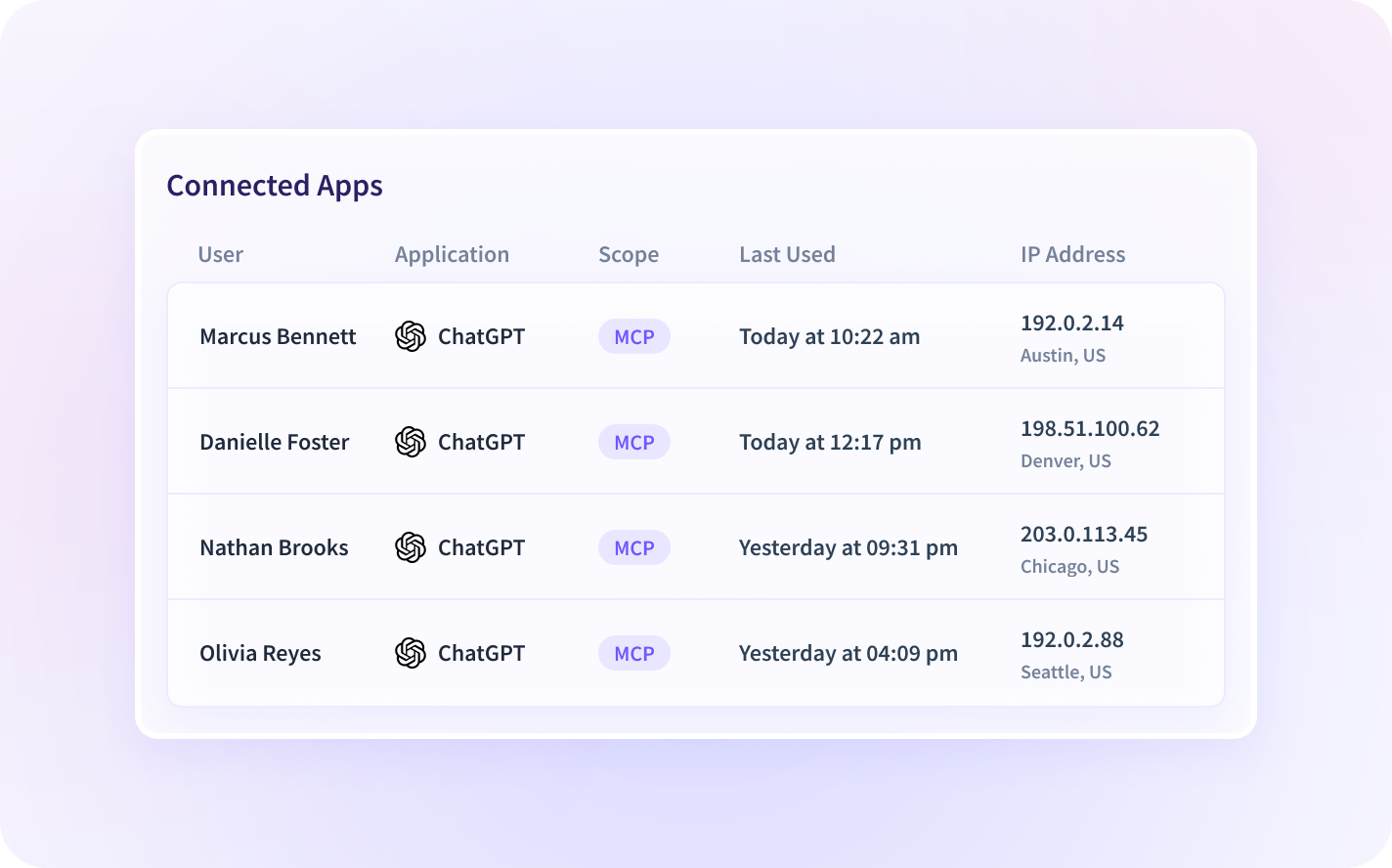
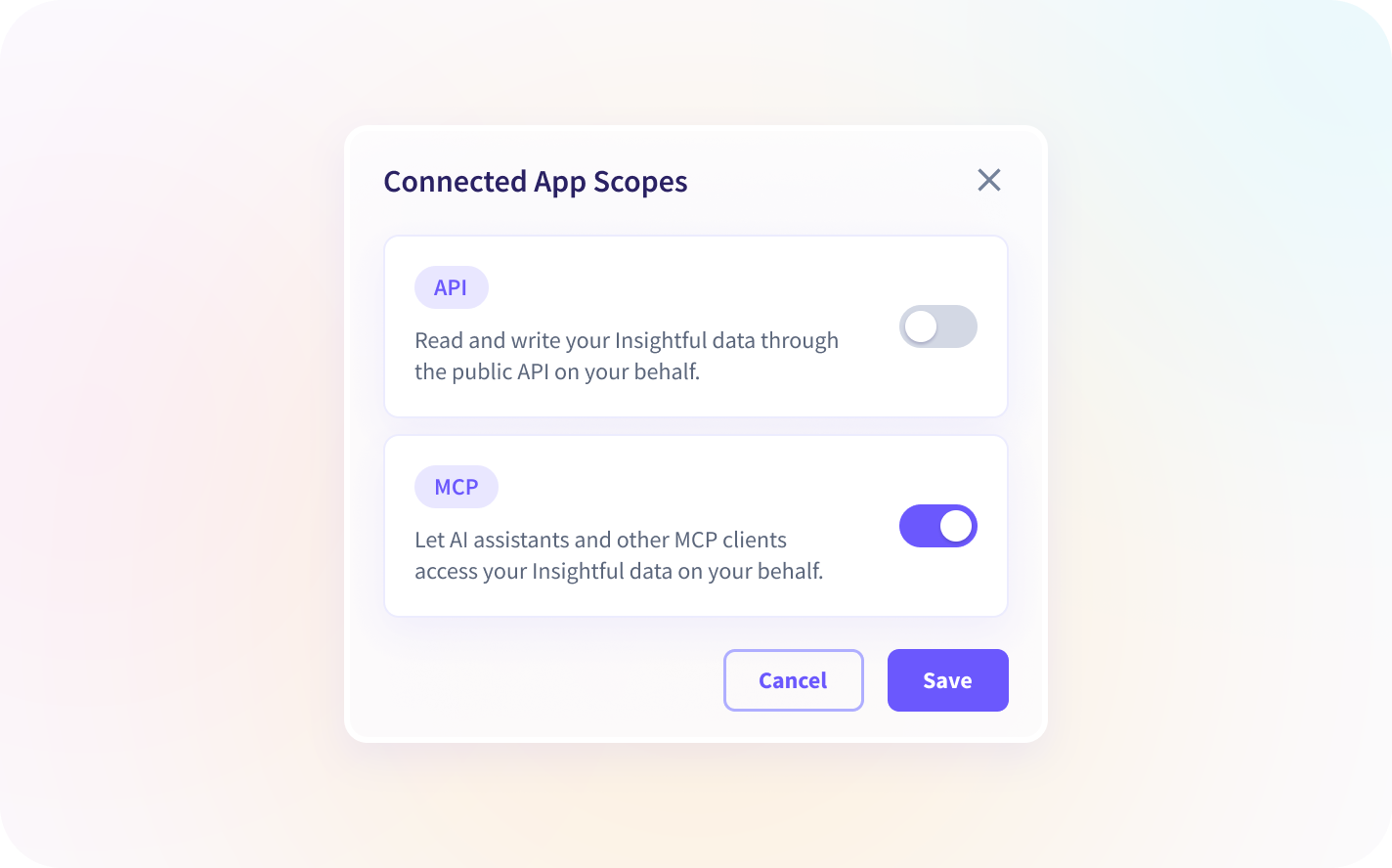
Turn it on, turn it off, anytime. MCP access is off by default. An org admin turns it on once, in Settings → Connected Apps → Manage Access. After that, every active connection is listed on the same Connected Apps page, with who connected, what scope, when it was authorized, and when it was last used. Any admin can select one and click Disconnect to shut it off instantly, no support ticket required.
How to Connect ChatGPT
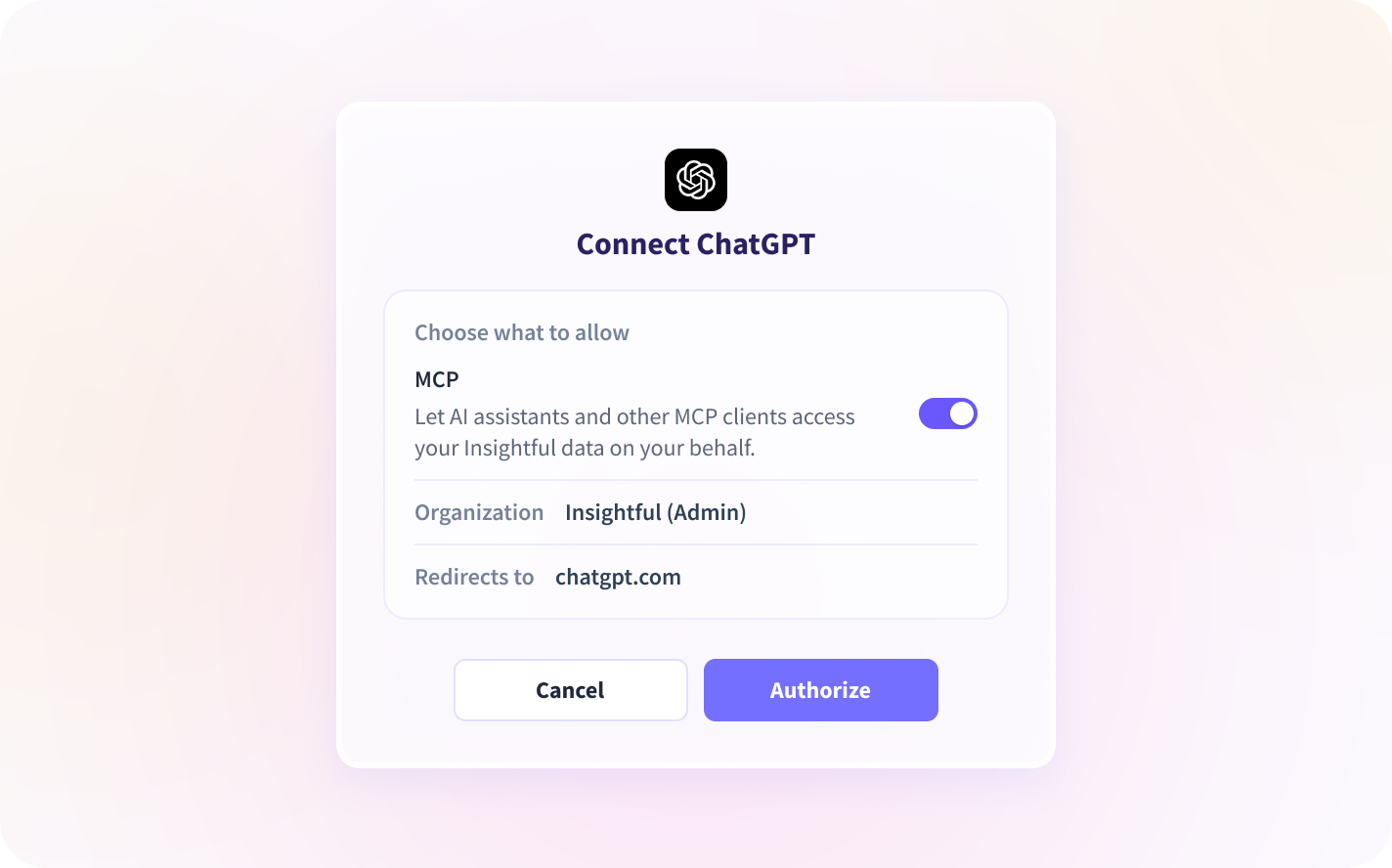
Before you start: MCP access is off by default for every organization. An org admin needs to turn it on once, in Settings → Connected Apps → Manage Access → Read Only MCP tools. Once that's on, anyone with the right Insightful permissions can connect their own AI client. No further admin involvement is needed per person.
- In ChatGPT, click your profile icon, then go to Settings → Apps & Connectors → Advanced Settings, and toggle on Developer mode.
- Back in Apps & Connectors, select Create connector.
- Enter a name (e.g., "Insightful"), an optional description, and your regional endpoint:
- United States: https://app.insightful.io/mcp
- European Union: https://eu.insightful.io/mcp
- Saudi Arabia: https://sa.insightful.io/mcp
- Set Authentication to OAuth, save, then sign in with your Insightful account and authorize access.
- In any conversation, click the + in the message box, select More → Developer mode, and toggle the Insightful connector on. Then start asking. Try: "What's our overall utilization this week?"
Using Codex?
Add this to your tool's MCP config file:
{
  "mcpServers": {
    "insightful": {
      "url": "https://app.insightful.io/mcp"
    }
  }
}
(Swap in your regional URL above if you're outside the US.)
Full setup guide: How to Set Up the Insightful MCP Server.
How other teams use Insightful MCP
Operations (Operators, Capacity Planners, Team Leads):
- "Which teams are trending over their usual hours this month, and by how much?"
- "Show my team's tracked time this week, broken down by project."
- "Is anyone on my team flagged for irregular behavior this month?"
Finance & BizOps (Business Operations Analysts, Economic Buyers):
- "Pull our engineering team's utilization this sprint and check it against our open deals in Salesforce."
- "How does utilization on the support team compare to last quarter?"
- "Which projects have the highest logged hours relative to what we budgeted this quarter?"
IT & Security (Risk, Compliance, and IT Leaders):
- "Pull every attendance alert from the last two weeks, across all teams."
- "List every active Insightful connection right now, and who authorized each one."
- "Show every connection created this month under our organization, and who set it up."
What ChatGPT Can (and Can't) See
ChatGPT can ask about: People and structure (employees, teams, org groups, manager relationships) • Time and attendance (shifts, clock-in/out, timesheets, lateness, absence, overtime) • Productivity (productivity-level breakdowns, including per-app labels and utilization %) • App and website usage • Projects and tasks (time logged against them) • Alerts (attendance and security alert history)
ChatGPT can't: Change anything in your account: the connection is read-only. See raw, event-by-event data: every answer is an aggregated summary, the same kind you'd see in an Insightful report. See screenshots, screen recordings, or activity logs, even if your organization has those features enabled: only the aggregated metrics derived from them come through.
On your data: Insightful doesn't use AI to analyze your data through this connection. Your data goes only to the AI client you chose and authorized. We don't see the questions you ask.
ChatGPT Connectors: See Your Team's Productivity, Right Inside ChatGPT

Plain-Language Questions:
Skip the dashboard-filter-export loop. Ask your AI assistant directly, in plain English, and get an answer pulled from live Insightful data.

Permission-Scoped Answers:
Every answer follows your existing Insightful role. Admins can ask about the whole organization; managers only see the teams and people they already manage.

Read-Only Access:
Connected AI tools can retrieve and summarize your data. They can never create, edit, or delete anything in your account.

Aggregated Data Only:
Screenshots, screen recordings, and activity logs stay out of reach, even when those features are enabled. Connected AI tools only get the aggregated metrics derived from them.

Admin-Gated by Default:
MCP access is off until an admin turns it on. After that, every connection stays visible, audited, and revocable from one settings page.

One Server, Every AI Client:
The same MCP server works with Claude, ChatGPT, Cursor, Windsurf, Cline, Claude Code, and Codex, included on every plan at no extra cost.
Explore Other Insightful Integrations
.svg)


